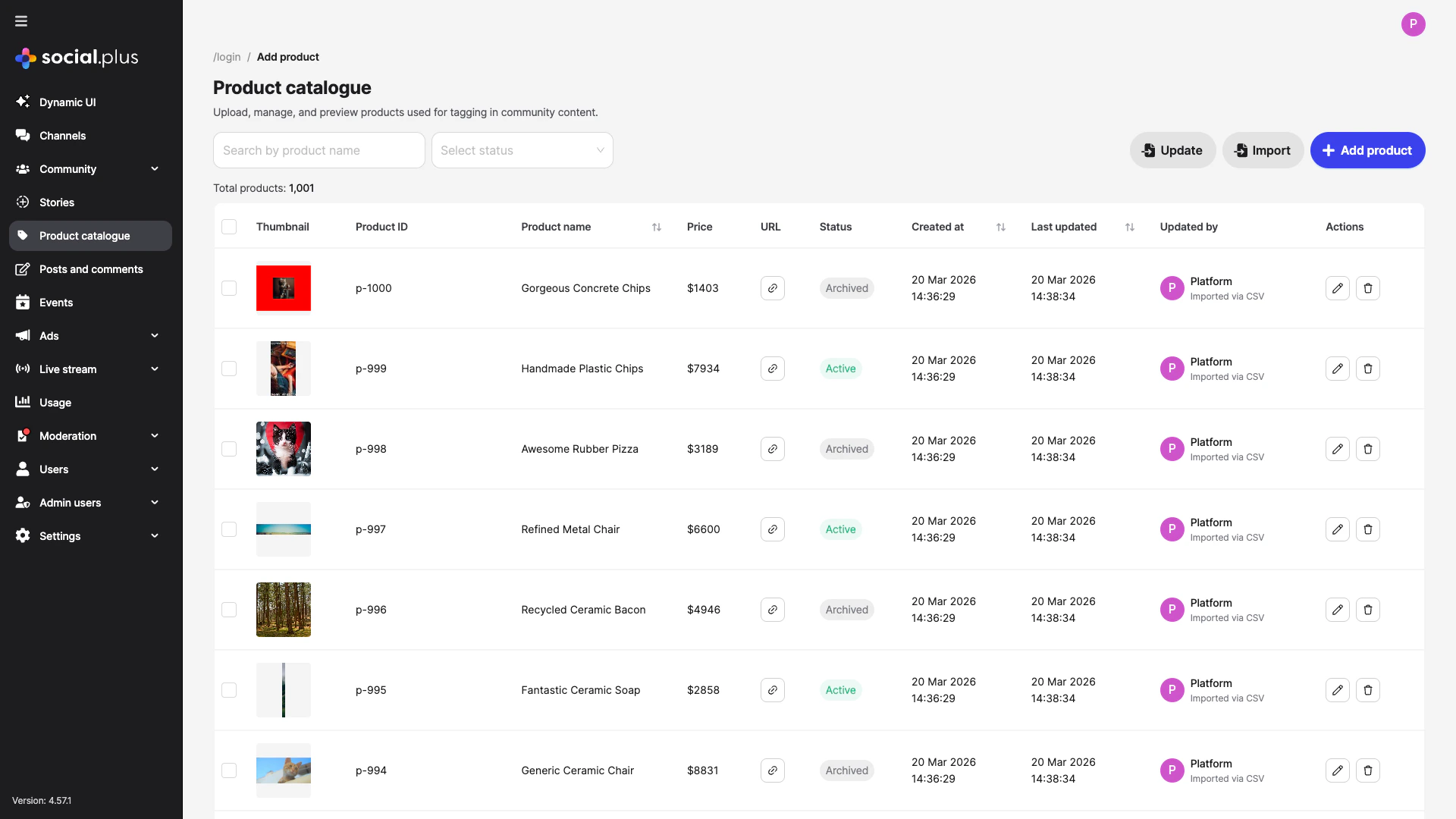
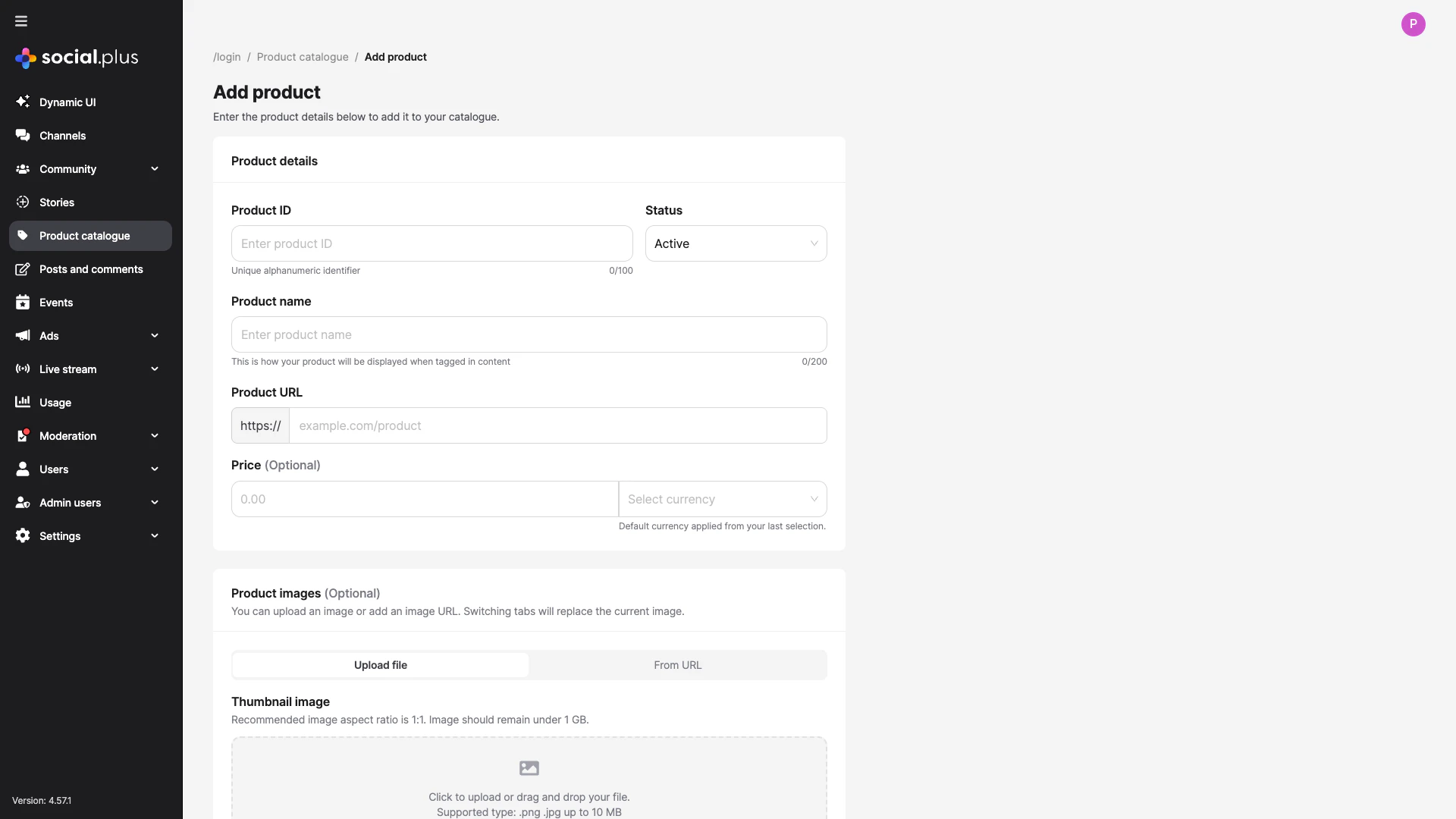
Turn posts and livestreams into shoppable experiences — set up your catalogue, tag products in text, image, video, and livestream content, and track engagement.
SDK v7.x · Last verified March 2026 · iOS · Android · Web
Speed run — just the code
import { PostRepository } from '@amityco/ts-sdk';// 1. Text post with product tagsconst textPost = await PostRepository.createPost({ targetType: 'community', targetId: communityId, dataType: 'text', data: { text: 'Loving this Nike Air Max for my morning runs!' }, productTags: [ { productId: 'prod_001', text: 'Nike Air Max', index: 12, length: 12 }, ],});// 2. Image post with attachment product tagsconst imagePost = await PostRepository.createPost({ targetType: 'community', targetId: communityId, dataType: 'image', data: { text: 'Check out these products!' }, attachments: [ { fileId: 'image-file-id-1', type: 'image' }, { fileId: 'image-file-id-2', type: 'image' }, ], attachmentProductTags: { 'image-file-id-1': [{ productId: 'prod_001' }], 'image-file-id-2': [{ productId: 'prod_002' }], },});// 3. Track engagementproduct.analytics.markAsViewed('feed_page/product_list/product_item', 'post', postId);product.analytics.markAsClicked('feed_page/product_list/product_item', 'post', postId);
Full walkthrough below ↓
Platform note — code samples below use TypeScript. Every method has an equivalent in the iOS (Swift) and Android (Kotlin) SDKs — see the linked SDK reference in each section.
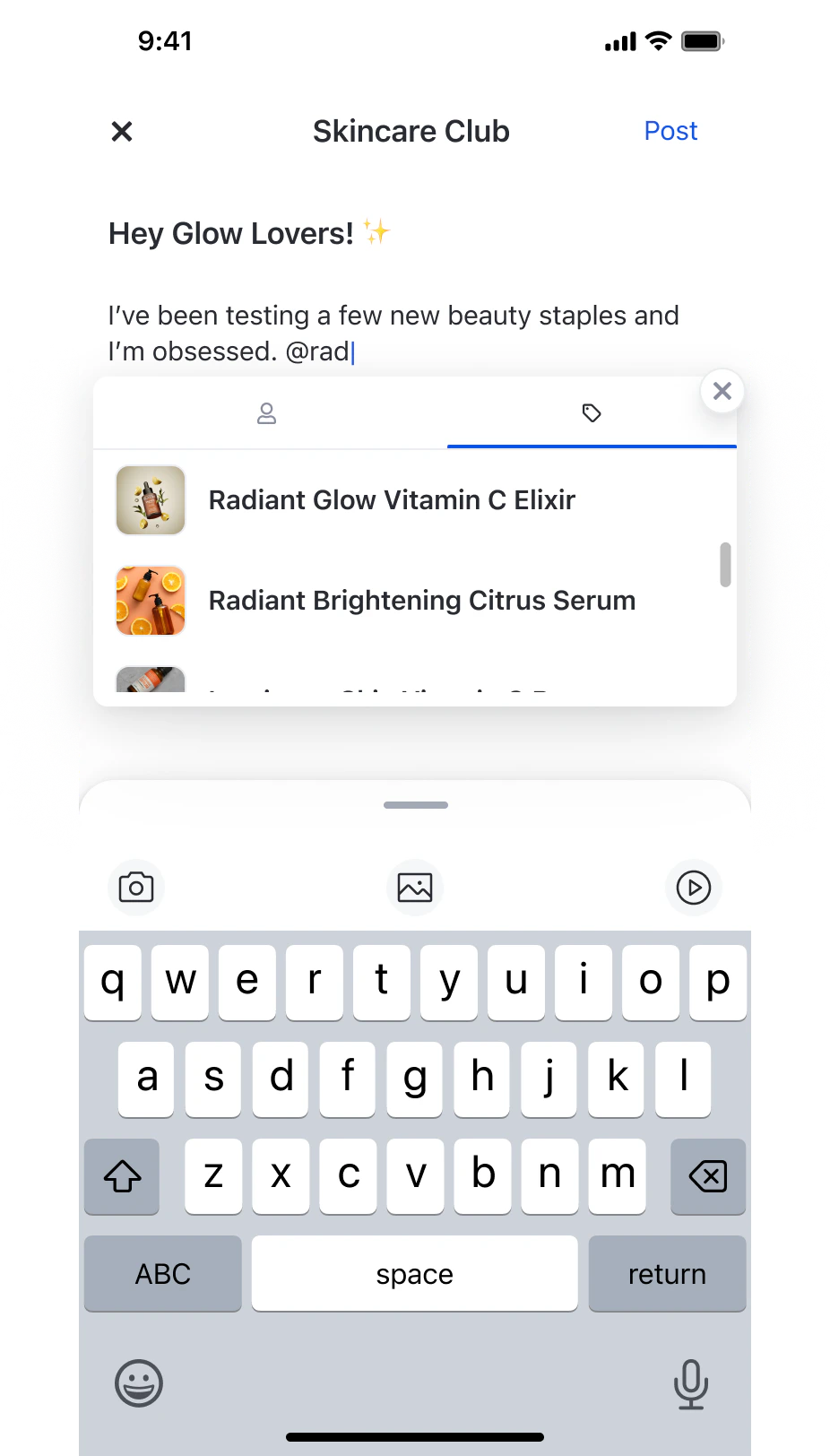
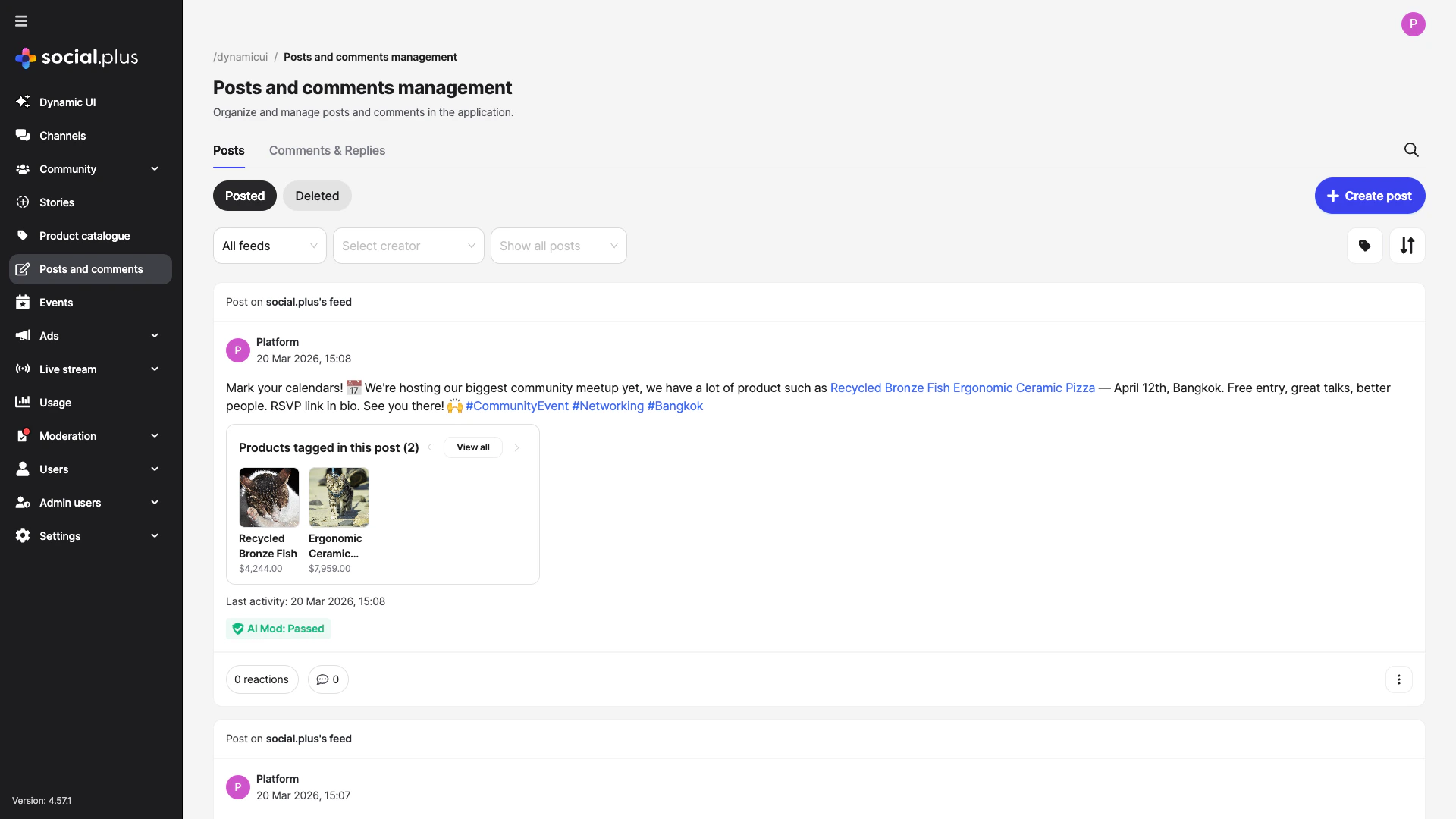
Tag products in a post by typing @ and switching to the product tab
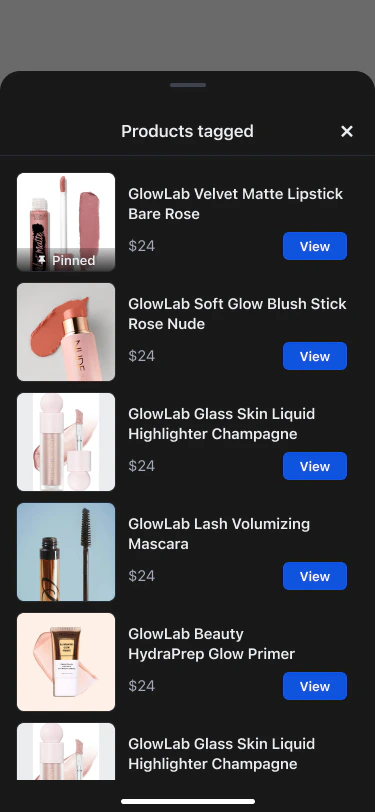
Product tagging lets users attach products from your catalogue to posts and livestreams, turning social content into a shoppable storefront. Viewers see product cards with images, prices, and direct links — without leaving the feed or stream.
For image (and video) posts, attach products to specific media files using attachmentProductTags. Products are linked by the fileId of each uploaded image.
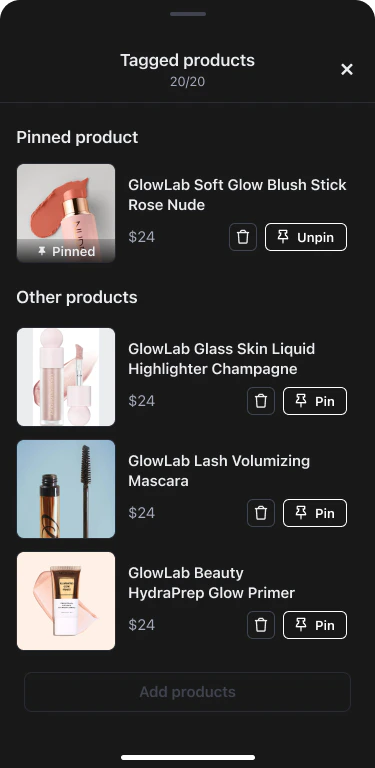
Livestream product tagging adds pinning — the host (or authorized co-host) can pin one product at a time as a prominent overlay visible to all viewers.
Both post and livestream product tags support fire-and-forget analytics for views and clicks. Events are automatically deduplicated per product per source.
// When a product card enters the viewportproduct.analytics.markAsViewed( 'feed_page/product_list/product_item', // location AnalyticsSourceTypeEnum.POST, // or ROOM for livestreams postId, // source ID);// When a viewer taps the product linkproduct.analytics.markAsClicked( 'feed_page/product_list/product_item', AnalyticsSourceTypeEnum.POST, postId,);
Tagging an Archived product — Only products with Active status in the Admin Console appear in the tag-product search. If a host can’t find a product, check its status.
Confusing text tags vs. attachment tags — Text posts use productTags (position in text). Image and video posts use attachmentProductTags (keyed by fileId). Mixing them up causes silent failures.
Using the parent post ID for livestream pin/unpin — pinProduct and unpinProduct require the child room post ID, not the parent. See Livestream Product Tagging for details.