

SDK v7.x · Last verified March 2026 · iOS · Android · Web · Flutter
Speed run — just the code
Speed run — just the code
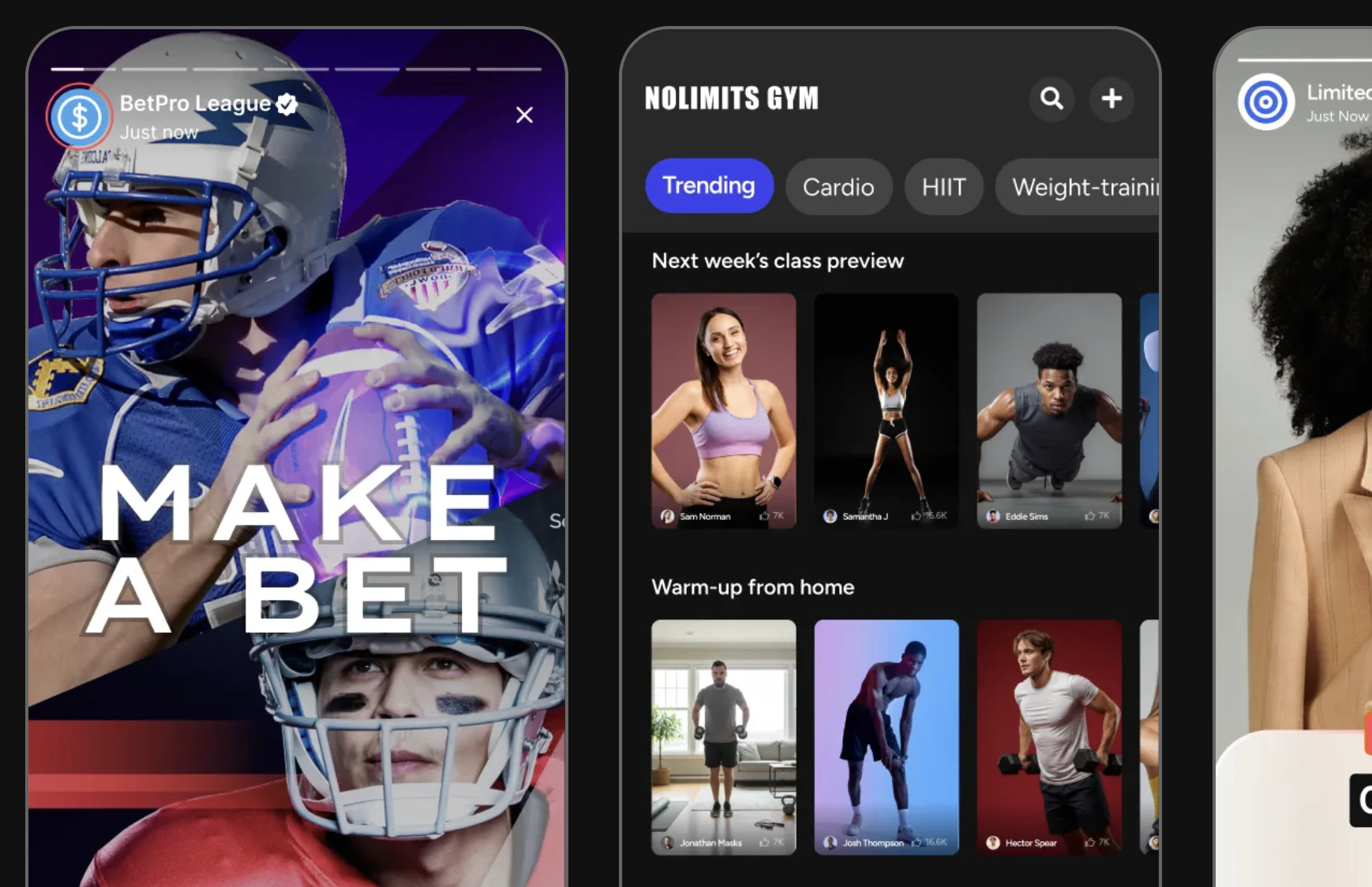
Stories — full-screen story ring bar and immersive story viewer with CTA
Prerequisites: SDK installed and authenticated. For video stories: video upload configured → Video Handling. You’ll need a
targetType (user or community) and targetId.Also recommended: Complete User Profiles & Social Graph — stories target user profiles and communities.After completing this guide you’ll have:
- Image and video story creation targeting communities and user profiles
- Story ring display with viewed/unviewed state on avatars
- Per-story view count and impression data accessible
Limits at a Glance
Quick Start: Create an Image Story
TypeScript
Step-by-Step Implementation
1
Get story targets (story rings)
Story targets are the entities (users or communities) that have active stories. Each target has a Full reference → Get Story Targets
hasUnseenStory flag you can use to highlight the ring.TypeScript
2
Get global story targets (explore/discover)
For an explore page, query all communities with active stories.Full reference → Get Global Story Targets
TypeScript
3
Get stories for a target
Query individual stories for a specific user or community to display in the full-screen viewer.Full reference → Get Stories
TypeScript
4
Track story impressions
When a story is shown full-screen, call Full reference → Story Impressions
markAsSeen() to record the view impression. View analytics in Admin Console → Social Management → Stories.TypeScript
5
Add reactions to stories
Stories support the same reaction system as posts. Use Full reference → Reactions
ReactionRepository with referenceType: 'story' and the story ID.TypeScript
Connect to Moderation & Analytics
Story impressions & reach
Story impressions & reach
View total views, unique viewers, and per-story impression data in Admin Console → Social Management → Stories. Programmatic access via
story.impressions in the SDK.→ Story ImpressionsModeration: flagging stories
Moderation: flagging stories
Users can flag inappropriate stories. Flagged stories appear in the Admin Console for moderator action.→ Content Flagging
Community story settings
Community story settings
Per-community story settings control whether comments are allowed on community stories. Configure in the Admin Console or via the SDK when creating/updating a community.→ Create Community
Common Mistakes
Best Practices
Story rings UX
Story rings UX
- Use a colored ring for unseen stories, a grey/transparent ring for fully seen stories
- Order story rings: currently-active user’s story → friends → communities
- Show a ”+” button on the current user’s ring to open the creation flow
- Animate the ring on tap to give tactile feedback before opening the viewer
Story viewer
Story viewer
- Auto-advance to the next story after ~5-7 seconds for images, or at video end
- Allow tap-left / tap-right to navigate between stories
- Show a progress bar across the top of the viewer for each story segment
- Pause auto-advance when the user long-presses (hold to read)
Performance
Performance
- Pre-fetch stories for the first 3 targets in the story ring so they open instantly
- Compress images to ≤1MB before upload — story images are full-screen and load time matters
- For video stories, start downloading the next story’s video while the current one plays
Next Steps
Your next step → Notifications & Engagement
Stories are live — now set up push notifications so followers know when new stories are posted.
Rich Content Creation
Create posts alongside stories for a complete content loop
Notifications & Engagement
Notify users when someone reacts to their story
Build a Social Feed
Combine a story bar at the top of the feed