

SDK v7.x · Last verified March 2026 · iOS · Android · Web · Flutter
Speed run — just the code
Speed run — just the code
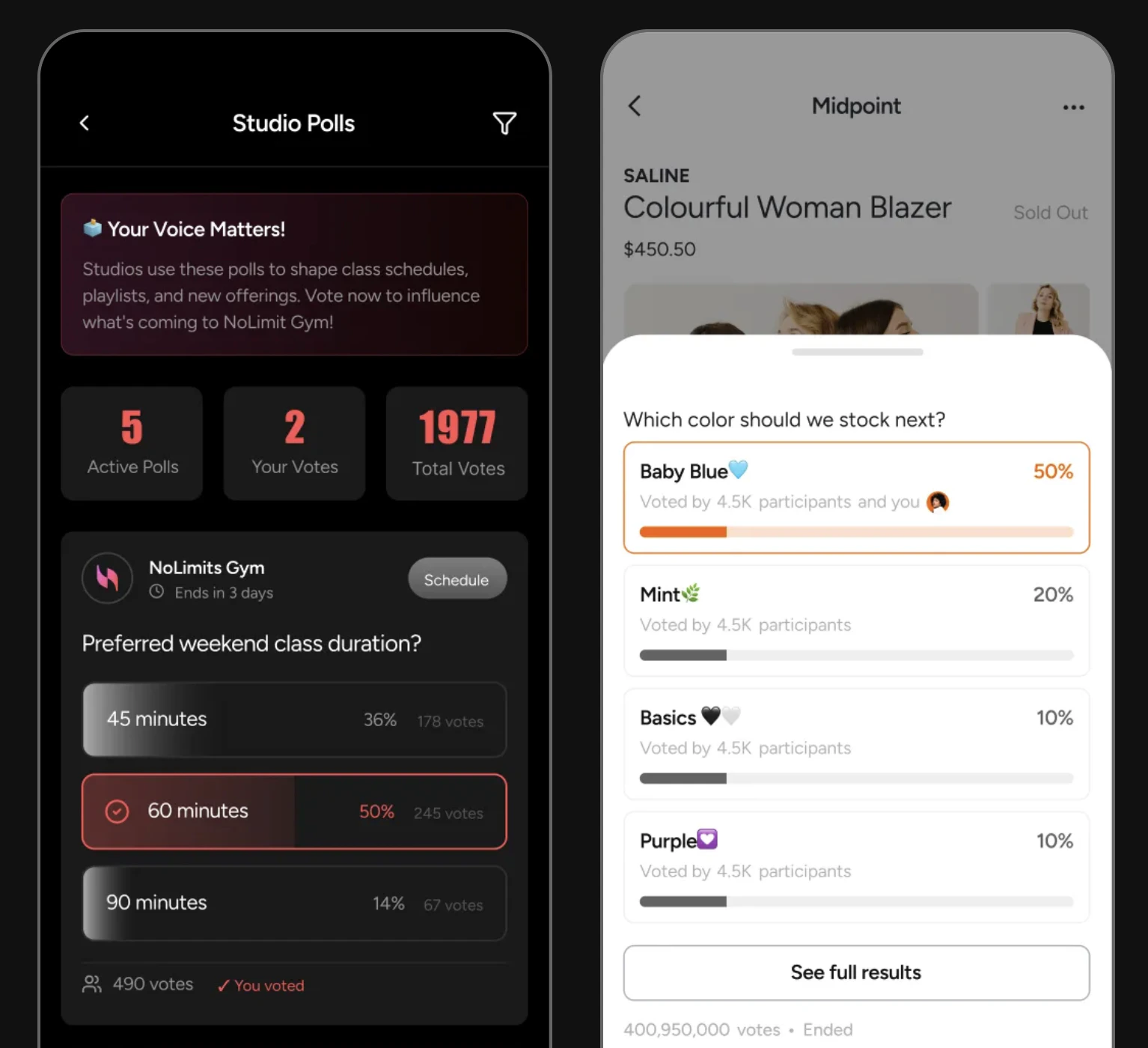
Polls in action — dedicated poll page with vote stats, and a product poll with live results
Polls are always published as part of a post — there are no standalone polls in the current SDK. The two-step flow (create poll → create post) is by design so polls appear in feeds like any other content.
After completing this guide you’ll have:
- Poll creation embedded inside a feed post (single and multiple choice)
- Voting, vote-change, and poll-close flows implemented
- Vote counts updating in real-time in your feed
Limits at a Glance
Quick Start: Create a Poll and Publish It
TypeScript
Step-by-Step Implementation
1
Create the poll
Create the poll object first. Choose Full reference → Polls
'single' for one answer or 'multiple' for multi-select. Set timeToClosePoll in milliseconds — omit it for a poll that stays open until you manually close it.TypeScript
2
Publish as a post in a feed
Create a poll post with the Full reference → Poll Posts
pollId. Add context text as the post caption — this is what users see before expanding the poll.TypeScript
3
Let users vote
Pass the poll ID and an array of answer IDs. For Full reference → Polls
single polls, the array will have one item. For multiple, users can select up to all options.TypeScript
4
Allow users to change their vote
Users can unvote and re-vote as long as the poll is still open. Call Full reference → Polls
unvotePoll first, then votePoll with the new selection.TypeScript
5
Close the poll manually
Poll owners and admins can close a poll early — for example, after a timed announcement. Once closed, no new votes are accepted and results are final.Full reference → Polls
TypeScript
6
Delete a poll
Permanently removes the poll and all vote data. Only the poll creator or an admin can delete. The associated post should also be deleted separately.Full reference → Polls
TypeScript
Rendering Poll Results
Use the poll’sanswers array to render a visual results bar. Show current vote percentages while the poll is open, and pin the winner after it closes.
TypeScript
Connect to Moderation & Analytics
Pin polls to community top
Pin polls to community top
Use the pin-post API to pin a poll post to the top of a community feed during active voting.→ Pin Post
Flag polls
Flag polls
Poll posts can be flagged by users and reviewed in Admin Console → Moderation → Flagged Content like any other post type.
Webhook: poll post events
Webhook: poll post events
Receive
post.created and post.updated events for poll posts to trigger downstream actions like push notifications to community members when a new poll is published.→ Webhook EventsCommon Mistakes
Best Practices
Poll design
Poll design
- Keep questions under 100 characters — readable at a glance in a feed card
- Provide 2–5 options for most polls; more than 6 reduces completion rates
- Avoid vague options like “Option A” — every answer should be self-explanatory without reading the question
- Use
'multiple'answer type for taste/preference questions,'single'for factual or decision polls
Rendering closed polls
Rendering closed polls
- Check
poll.isVotablebefore showing the vote button — hide it entirely whenfalse - Highlight the winning option (most votes) with a distinct visual treatment after close
- Show the total vote count prominently — social proof drives engagement on future polls
- Keep the poll post visible in the feed after closing; don’t delete it just because voting has ended
Real-time result updates
Real-time result updates
- Subscribe to the post live object to receive vote count updates without manual refresh
- Animate the percentage bar as it changes — a smooth transition feels more alive than a jump
- Debounce vote button presses to prevent accidental double-votes
Next Steps
Your next step → Comments & Reactions
Polls are interactive — now add comments and reactions so users can discuss the results.
Rich Content Creation
Polls alongside all other post types in one guide
Community Platform
Publish polls to community feeds with pinning support
Notifications & Engagement
Notify members when a new poll is published